Bulk ordering on Shopify is the process of buying many products and quantities in a single action, through a quick order page, a bulk order form, or a CSV upload, rather than adding items one product page at a time. It matters most for B2B and wholesale buyers, who place large, repeat carts and expect speed. Get it right and reorders take seconds instead of an afternoon.
There are two things people mean by “Shopify bulk order,” and this guide covers both: the buyer-facing side (how wholesale customers place big orders fast) and the merchant-facing side (how you fulfill or edit many orders at once in your admin). Most of this guide focuses on the buyer-facing side, because that is where wholesale revenue is won or lost.
What Bulk Ordering on Shopify Means
Bulk ordering on Shopify means letting a buyer add many products and large quantities to a cart in one action instead of visiting each product page. For wholesale, this usually takes the form of a bulk order form or quick order page: a single table where a buyer types quantities across dozens of SKUs and adds them all at once.
The same phrase carries a second meaning on the merchant side, so it helps to separate them clearly.
| Meaning | Who does it | Where it happens |
|---|---|---|
| Buyer-facing bulk order | Your wholesale customer | Storefront quick order page, bulk order form, or CSV upload |
| Merchant-facing bulk action | You and your team | Shopify admin, applying one action to many orders at once |
For the rest of this guide, “bulk order” refers to the buyer-facing wholesale experience unless stated otherwise.
Why Wholesale Buyers Need a Bulk Order Option
Wholesale buyers need bulk ordering because a standard retail flow makes large orders painfully slow. A distributor reordering 60 SKUs should not click through 60 product pages, and if the experience is that clunky, they email a spreadsheet instead, which pushes the work back onto your team.
Without a proper bulk order path, most merchants deal with the same problems:
- Manual order entry from emails, PDFs, and phone calls
- Pricing mistakes when wholesale discounts are applied by hand
- Slow reorders that frustrate repeat buyers
- Retail shoppers accidentally seeing wholesale prices
A quick order page removes that friction and lets buyers self-serve. Outcome: faster reorders, fewer manual errors, and higher wholesale conversion.
How Bulk Ordering Works on Shopify
Bulk ordering on Shopify works through three buyer-facing methods plus one merchant-side tool. The right mix depends on your plan, your catalog size, and how your buyers already work.
| Method | Best for | Where it lives |
|---|---|---|
| Native B2B quick order lists | Stores using Shopify’s built-in B2B | B2B catalogs for logged-in company buyers |
| Quick order page / bulk order form | Most wholesale stores | An app-powered storefront page |
| CSV / spreadsheet upload | High-SKU repeat buyers | Upload on the quick order page |
| Bulk actions in admin | You, the merchant | Shopify admin orders list |
Native Shopify B2B Quick Order Lists
Shopify’s built-in B2B gives logged-in company buyers a quick order list on B2B catalogs, where they can search products and set quantities in one view. It is a solid starting point if you already use Shopify B2B. The main constraint is scale: on plans below Shopify Plus, native B2B caps you at three active catalogs, which limits how many distinct price lists you can run.
Outcome: a workable bulk flow for smaller B2B setups, with a ceiling as you grow.

A Dedicated Quick Order Page or Bulk Order Form
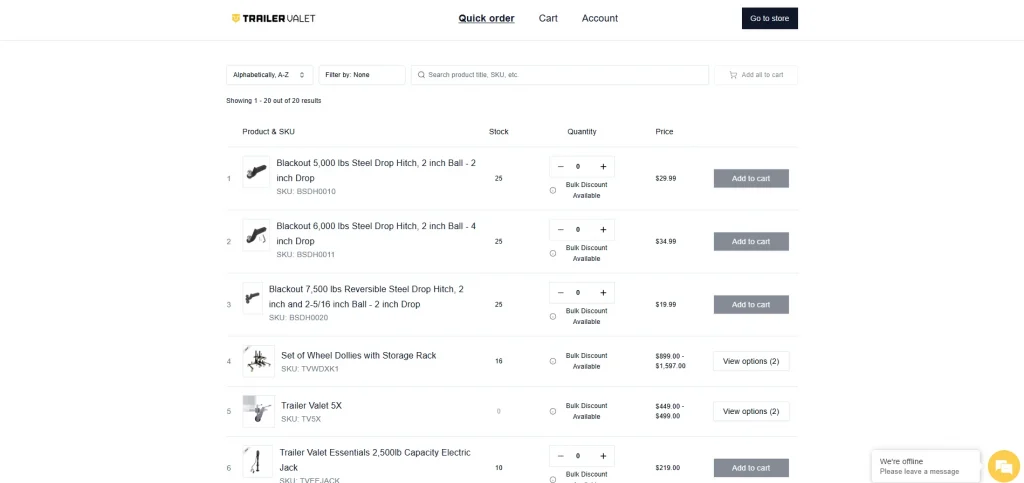
A dedicated quick order page is a single storefront page that lists your products or variants in a table with quantity fields and inline add-to-cart. This is what most bulk order apps add, and it is the fastest experience for buyers who already know what they want. You can usually apply it to all products, specific products, or selected collections.
Outcome: buyers build a large cart on one page instead of navigating your whole catalog.
CSV and Spreadsheet Upload
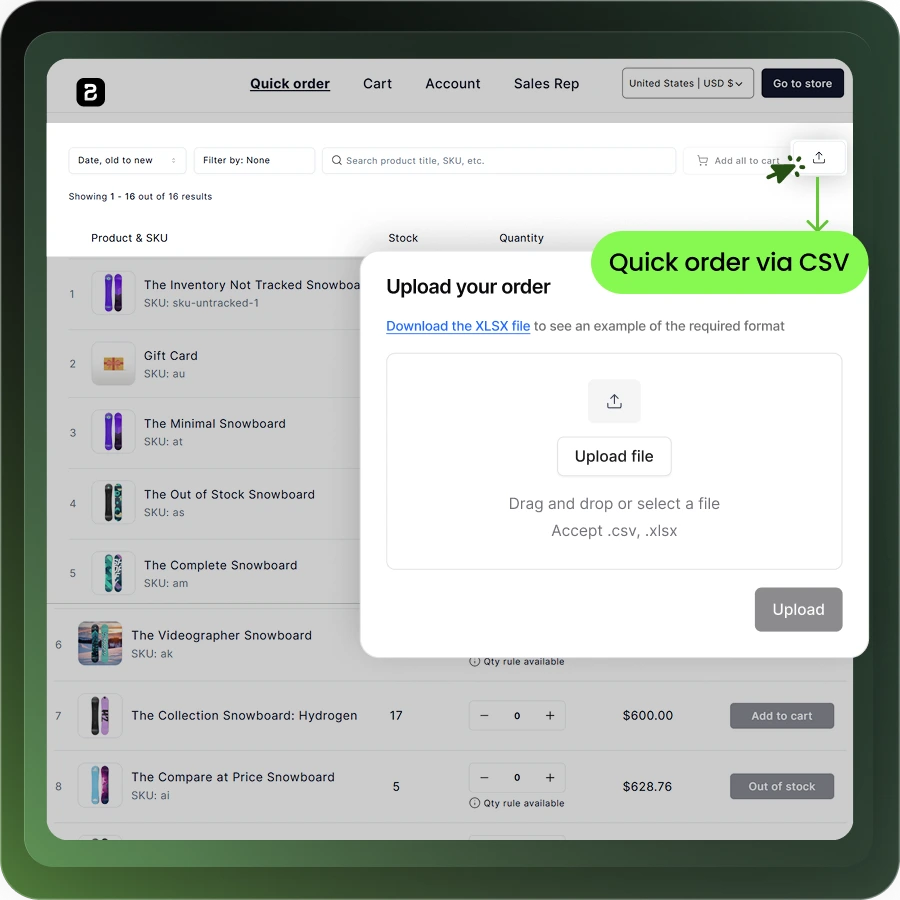
CSV upload lets a buyer build an order by uploading a file of SKU and quantity, or by copying and pasting rows straight from Excel or an ERP. Shopify’s own CSV imports require a .csv file with UTF-8 encoding, and quick order apps follow a similar SKU-plus-quantity format. This is ideal for repeat buyers who already manage purchase lists in a spreadsheet.
Outcome: a 200-line order becomes one upload instead of hundreds of clicks.
Bulk Actions in the Shopify Admin
Bulk actions are the merchant-side meaning of “bulk order”: from your admin you can select many orders and fulfill them, mark them in progress or on hold, or request fulfillment in one step. If you select more than 250 orders, some actions may be limited.
Outcome: your team processes a day of wholesale orders in a few clicks instead of one at a time.
How to Set Up a Bulk Order Page on Shopify
You set up a bulk order page on Shopify by choosing a method, configuring pricing and access for your B2B buyers, and turning on a quick order page with the right order rules. The steps below apply whether you use native B2B or a dedicated app.
- Choose your method. Decide between native Shopify B2B and a dedicated bulk order app based on how many price lists you need and whether you want CSV upload.
- Create customer groups and B2B price lists. Set up wholesale pricing tied to logged-in buyers so each customer sees the right prices.
- Enable and configure the quick order page. Apply it to all products, specific products, or collections, and choose which columns to show, such as product image, SKU, stock, price, and quantity.
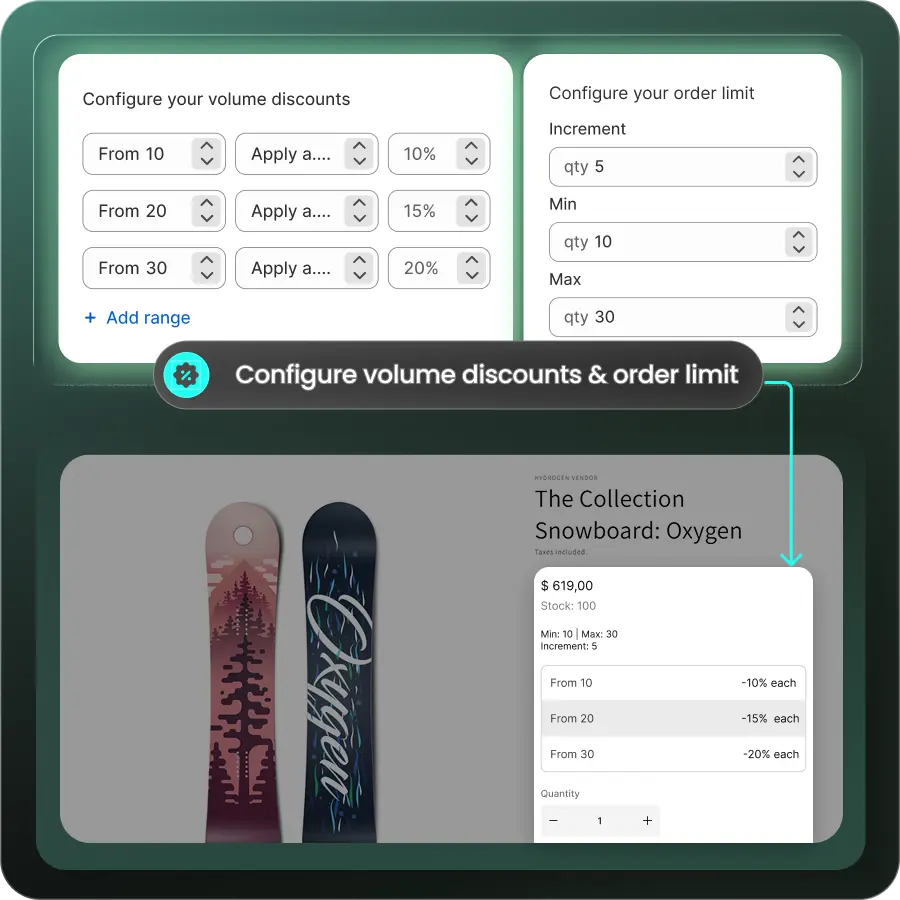
- Set your order rules. Add minimum and maximum order quantities, quantity increments, and unit pricing so bulk orders stay profitable.
- Add CSV upload, test, and share. Turn on CSV upload for large carts, place a test order, then share the page with approved buyers.
Order Rules That Keep Bulk Orders Profitable
Order rules are the settings that make bulk ordering profitable rather than just fast. Without them, buyers can order broken packs, undercut your minimums, or trigger shipping that erases your margin. These rules are where a dedicated B2B solution goes well beyond a basic order form.
Minimum and Maximum Order Quantities
A minimum order quantity (MOQ) is the smallest amount a buyer must order for a product, and a maximum caps the largest. MOQs protect your margin and shipping economics by keeping wholesale orders above a viable threshold. Set them per product or per customer group so different buyers can have different floors.
Quantity Increments
Quantity increments force orders to move in set steps, such as multiples of 12, so buyers order full cases, cartons, or pallets. This prevents broken-pack orders that are expensive to fulfill. It also mirrors how your warehouse actually ships.
Unit Pricing for Cases and Pallets
Unit pricing shows the per-item price alongside the pack price, so a buyer sees both the case price and the cost per unit. This transparency reduces pricing questions and builds trust with professional buyers. It is especially useful when you sell the same SKU by unit, case, and pallet.
Volume Discount Tiers
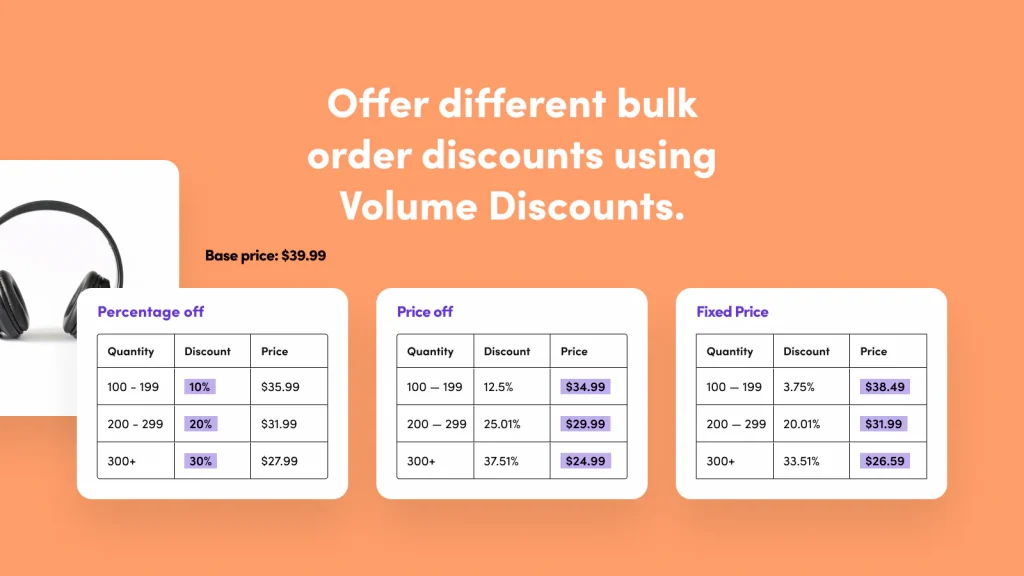
Volume discount tiers apply automatic price breaks as quantity rises, rewarding larger orders. Clear on-page tiers nudge buyers toward the next threshold and lift average order value. In B2Bridge these rules, along with MOQ, increments, and unit pricing, are configurable per customer group and stay unlimited even at the $99 per month Professional tier.
Bulk Ordering Apps for Shopify
Several Shopify apps add bulk ordering, and the best choice depends on how seriously you run wholesale. The table below compares the main options, followed by a closer look at each. Pricing for B2Bridge is current as of 2026; for other apps, check the App Store for the latest.
| App | Best for | Bulk order features | Pricing (as of 2026) |
|---|---|---|---|
| B2Bridge | All-in-one wholesale on Shopify | Quick order page, CSV upload, MOQ, increments, volume, unit pricing, net terms | Free Starter; $99 to $299/mo |
| Shopify B2B (native) | Stores wanting no extra app | Quick order lists on B2B catalogs | Included with plan |
| BSS B2B Order & Quote | Quote-plus-bulk workflows | Quick order form, CSV, reorder, RFQ | Check App Store |
| Wholesale Helper | Fast reorders | Single-page order form, 2-click reorder | Check App Store |
| Wholesale Gorilla | Simple wholesale setups | Order form, min/max, custom pricing | Check App Store |
B2Bridge for All-in-One Wholesale Bulk Ordering
B2Bridge combines bulk ordering with the full wholesale workflow in a single Shopify app. Its Quick Order Page enables single-page ordering across your catalog, including CSV upload, and it enforces order rules with live inventory cross-referencing.
- Best for: hybrid B2C and B2B brands and distributors scaling wholesale on Shopify.
- Standout features: Quick Order Page with CSV upload; MOQ, increments, volume, and unit pricing; net terms (Net 15 to 90); unlimited price lists, customer groups, and orders at a flat price; ERP sync with NetSuite, Zoho, and Odoo.
- Considerations: built for serious B2B operations rather than a single-purpose order form.
- Pricing: free Starter; Professional $99/mo; Growth $199/mo; Advanced $299/mo.

Shopify B2B Native for Merchants Already on Higher Plans
Shopify’s built-in B2B includes quick order lists for logged-in company buyers, with no extra app to install. It is a reasonable default if your needs are modest.
- Best for: stores that want bulk ordering without adding an app.
- Standout features: quick order lists on B2B catalogs; company accounts; native checkout.
- Considerations: non-Plus plans cap you at three active catalogs, and there is no built-in sales rep portal or ERP sync.
- Pricing: included with your Shopify plan.
BSS B2B Order and Quote for Quote Plus Bulk Workflows
BSS B2B pairs a quick order form with request-a-quote, so buyers can either order in bulk or negotiate first. It suits merchants who want quoting alongside bulk ordering.
- Best for: stores that need quoting and bulk ordering together.
- Standout features: quick order form, CSV upload, one-click reorder, RFQ.
- Considerations: capabilities are split across separate BSS apps you may need to combine.
- Pricing: check the Shopify App Store for current tiers.
Wholesale Helper for Fast Reorders
Wholesale Helper‘s order form focuses on speed for repeat buyers, with a single-page form and two-click reordering. It is a strong fit when reorders dominate your wholesale volume.
- Best for: repeat B2B buyers placing familiar orders.
- Standout features: single-page quick order form; fast reorder; theme compatibility.
- Considerations: typically paired with a separate wholesale pricing app.
- Pricing: check the Shopify App Store for current tiers.
Wholesale Gorilla for Simple Wholesale Setups
Wholesale Gorilla offers a straightforward order form with min and max rules and custom pricing. It works well for smaller catalogs that do not need enterprise features.
- Best for: smaller wholesale catalogs.
- Standout features: order form, minimum and maximum quantity rules, custom and fixed pricing, translations.
- Considerations: fewer enterprise and ERP integration features.
- Pricing: check the Shopify App Store for current tiers.

Best Practices for a High Converting Bulk Order Experience
The best bulk order pages are fast, clear, and gated to the right buyers. Follow these practices to turn a functional form into one that buyers actually enjoy using.
- Keep the page fast and clean. Show only the columns buyers need and avoid clutter that slows the table down. A quick page keeps large orders moving.
- Show live stock and B2B price. Display real-time inventory and the buyer’s contracted price so they order with confidence. This cuts back-and-forth with your team.
- Enable search and filter. Let buyers find SKUs fast in a long catalog. Search is essential once you pass a few dozen products.
- Offer CSV upload for large carts. Give repeat buyers a way to upload a spreadsheet instead of typing. This is the single biggest time-saver for high-SKU orders.
- Enable reorder from history. Let buyers rebuild a past order in a click or two. Most wholesale orders are repeats.
- Gate the page to approved buyers. Require login so only verified wholesale accounts see the page and its pricing. This protects your margins and your retail experience.
Common Bulk Ordering Challenges and How to Solve Them
Most bulk ordering problems come from missing rules or missing access control, and each has a clear fix. Address them up front to avoid margin leaks and buyer frustration.
| Challenge | Solution |
|---|---|
| Retail shoppers see wholesale prices | Gate the page and prices behind login for approved groups |
| Big carts oversell inventory | Use live inventory cross-referencing on the quick order page |
| Buyers order broken packs | Enforce quantity increments by case, carton, or pallet |
| Slow manual order entry | Offer CSV upload and copy-paste from spreadsheets |
| Growth hits native catalog limits | Move to an app with unlimited price lists and orders |
What Bulk Ordering Costs on Shopify
Bulk ordering on Shopify ranges from free to about $299 per month, depending on the method. Native Shopify B2B is included with your plan, while dedicated apps range from free tiers to enterprise pricing.
B2Bridge, for example, starts with a free Starter plan and scales to Professional at $99 per month, Growth at $199 per month, and Advanced at $299 per month, with a 14-day free trial on paid plans. Most setups need no developer, since the quick order page and order rules are configured in the app. When you compare costs, weigh the scale limits too: a free native option that caps you at three catalogs can become the more expensive choice once you outgrow it.
Launch Bulk Ordering on Shopify with B2Bridge
If you are scaling wholesale on Shopify, bulk ordering should speed up your buyers without capping your growth. B2Bridge is built for exactly that: it brings bulk ordering and the full B2B workflow into one Shopify app, and it does not penalize you as you grow.
- Quick Order Page with CSV upload for fast, high-SKU orders
- MOQ, quantity increments, volume discounts, and unit pricing per customer group
- Net terms (Net 15 to 90) and a self-service account portal
- Unlimited price lists, customer groups, and orders at a flat price, unlike native B2B’s three-catalog cap
- Sales rep portal and ERP sync with NetSuite, Zoho, and Odoo
Outcome: wholesale buyers self-serve large orders while your team stops rekeying spreadsheets. Book a Demo to see it on your own catalog.
FAQs About Shopify Bulk Ordering
Does Shopify have a built-in bulk order form?
Shopify’s native B2B includes quick order lists for logged-in company buyers on B2B catalogs, which act as a built-in bulk order tool. For a full quick order page with CSV upload and detailed order rules, most merchants add a dedicated app.
How do wholesale customers place a bulk order on Shopify?
Wholesale customers place a bulk order through a quick order page, where they enter quantities across many SKUs and add them all to the cart at once. They can also upload a CSV or reorder from a past order to build large carts in seconds.
Can buyers upload a CSV to place a bulk order?
Yes. With a bulk order app such as B2Bridge, buyers upload a CSV of SKU and quantity, or paste rows from a spreadsheet, to build an order instantly. The file typically needs to be a .csv with UTF-8 encoding.
Do I need Shopify Plus for B2B bulk ordering?
No. You can run B2B bulk ordering on any Shopify plan, either with native B2B (capped at three active catalogs below Plus) or with an app like B2Bridge that keeps price lists and orders unlimited at a flat price.
How do I set a minimum order quantity for bulk orders?
Set a minimum order quantity in your bulk order app by defining an MOQ per product or per customer group. B2Bridge also supports maximum quantities and quantity increments, so orders match your packaging and margin requirements.
What is the difference between a bulk order and a bulk action in Shopify?
A bulk order is placed by a buyer who purchases many products at once, while a bulk action is performed by you in the admin to fulfill or update many orders at once. The first is a storefront experience; the second is an order-management tool.

As a Product Marketing Executive at B2Bridge, I focus on the Enterprise B2B Ecommerce domain. I leverage my understanding of product and user psychology to deliver customer-centric content that addresses business challenges and fuels growth.