B2B product quantity increments require customers to purchase in fixed multiples (such as packs of 10), supporting bulk distribution efficiency. Platforms like Shopify, Salesforce, and WooCommerce allow businesses to set minimums, maximums, and increment rules at the product or variant level, helping prevent broken packs, simplify logistics, and maintain accurate inventory updates.
This guide walks through everything you need to know: what product quantity increments are, why they matter, how to set up quantity rules in B2B on Shopify, and how to avoid the pitfalls that cause cart abandonment.

Introduction
If you run a B2B wholesale store, you’ve likely dealt with this frustration: a buyer places an order for 7 units when your minimum is 12, or orders 10 items when you only sell in packs of 6. The result? A fulfillment headache, a customer service call, and an order that costs more to process than it earns.
Product quantity increments solve exactly this problem. They’re cart-level controls that enforce your business rules automatically – ensuring buyers can only purchase in quantities that align with your packaging, inventory, and logistics. Whether you need a minimum order of 12 units, increments of 6 (so buyers go 12 → 18 → 24), or a maximum cap of 120 per order, quantity rules make your store smarter and your operations smoother.
What Are Product Quantity Increments in B2B?
Product quantity increments are purchasing constraints applied at the cart or product level that limit buyers to valid order quantities. Unlike B2C stores where customers can buy any number they choose, B2B stores often have hard packaging or logistics requirements that make “any quantity” orders impossible to fulfill.
For example, a cleaning supplies wholesaler might sell floor cleaner in cases of 12. A retailer who orders 9 bottles creates an immediate problem – the supplier either has to break a case (adding cost and waste) or reject the order entirely. With quantity increments set to a minimum of 12 and a step of 12, buyers can only select 12, 24, 36, and so on – quantities that map directly to full cases.
For industries where products are commonly purchased in bulk, the same logic applies to operational supplies. Foodservice businesses, for example, often purchase takeaway containers and related products in defined case quantities from a UK food packaging supplier such as PandaPak, helping make ordering, stock planning, and fulfilment more predictable.
There are several types of quantity rules you can apply:
- Minimum Order Quantity (MOQ): The lowest quantity a buyer can purchase. Common for wholesale products sold by the case or pallet.
- Fixed step increments: Buyers can only add quantities in set multiples (e.g., +6 at a time).
- Maximum order caps: Upper limits per order, useful for managing inventory or preventing overstock.
- Variant-level rules: Different increments for different product variants (e.g., small vs. large format).
- Customer-tiered rules: Different MOQs for different buyer segments – VIP customers might have a lower MOQ than standard wholesale accounts.
According to industry surveys, around 68% of B2B Ecommerce stores use some form of quantity control. Yet many set them up incorrectly, leading to friction rather than efficiency. That’s why the setup process matters as much as the rules themselves.
Why Use Quantity Increments? The Business Case
The most common pushback from store owners is: “Won’t this drive buyers away?” The data says the opposite – when implemented thoughtfully, quantity increments increase order value and reduce operational costs significantly.
Operational Efficiency and Inventory Alignment
The most immediate benefit is operational. When every order maps to a valid packaging unit – a case, a roll, a pallet – your warehouse team doesn’t have to make judgment calls or repack items. Studies and practitioner reports suggest that enforcing quantity rules through automation can reduce fulfillment errors by 30–50%. That’s not just a cost saving; it’s a reliability improvement that your buyers will notice.
Inventory management also becomes more predictable. When you know orders will always arrive in multiples of your stocking unit, reorder points and safety stock calculations become far more accurate.
| Metric | Impact |
| Fulfillment error reduction | 30–50% |
| Inventory forecasting accuracy | Significantly improved |
| Manual order corrections | Near zero with automation |
Higher AOV and Bulk Order Nudging
Quantity increments create a natural nudge toward larger orders. When a buyer sees that the minimum is 12 and the next increment is 18, many will choose 18 rather than the minimum – especially if you pair the increment with a volume discount at that tier. This “step-up” behavior has been shown to increase wholesale average order value by 15–20% in B2B contexts.
The UI matters here. Stepper controls – the +/– buttons that jump in defined increments – outperform free-entry fields for driving upsizing. Buyers can see their options clearly and are more likely to round up when the next increment is just one click away.
Reduced Support Tickets and Returns
Every time a buyer orders an invalid quantity, someone has to handle it – whether that’s a customer service rep emailing to explain the MOQ, a warehouse worker flagging the order, or an account manager manually adjusting the invoice. Quantity increments eliminate this at the source. Businesses that implement proper quantity controls report around 25% less time spent on order-related support.
| Ready to streamline your wholesale quantity management? B2Bridge offers advanced quantity increment controls with full customer portal support. → Book a 30-minute call |
Common Pitfalls in Quantity Rule Setup
Getting quantity increments wrong can hurt more than having no rules at all. Here are the three most common mistakes – and how to avoid them.
Cart Abandonment from Rigid Rules
Setting a high MOQ without any guidance or flexibility is the fastest way to lose SMB buyers who genuinely want to order but can’t meet your minimum. If a new wholesale customer sees “Minimum order: 144 units” with no context, they’ll often leave rather than ask.
The fix: Use progressive MOQs for new accounts. Start new customers at a lower minimum (say 24 units) and increase the requirement as the relationship grows. Pair your increment rules with clear on-page messaging – “This product is sold in cases of 12. Minimum 2 cases per order.” – so buyers understand the logic, not just the constraint.
Multi-Variant Complexity
Many stores apply a single quantity rule to all variants of a product, even when different variants have different packaging. Getting this wrong means either over-restricting buyers or allowing unfulfillable orders.
The fix: Use an app that supports variant-level quantity rules with bulk template application. BSS Commerce and B2Bridge both handle this well, letting you set rules by variant, collection, or product tag and push changes in bulk.
B2C Leakage
If your Shopify store serves both wholesale and retail customers, quantity increments meant for wholesale buyers can confuse or deter retail shoppers who just want to buy one item.
The fix: Use customer tag-based or company-based rules so increments only display for logged-in B2B accounts. Shopify Plus’s native B2B catalog system handles this at the catalog level; third-party apps like B2Bridge offer role-based visibility controls that keep your B2C experience clean.
Set up Quantity Rules for products: Step-by-Step Setup Guide
There are three main routes to setting up product quantity increments, depending on your store’s complexity and budget. Here’s a practical breakdown of each.
How to set up quantity increments using Shopify Plus Native (B2B Catalogs)
You can configure quantity rules in the Catalogs section of your Shopify admin or import them via CSV.
Steps:
- In Shopify admin, go to Markets > Catalogs.
- Select the catalog you want to edit.
- In Products and pricing, click Manage > Manage products and pricing.
- Choose whether to apply rules to:
- All variants of a product (hover over the product), or
- A specific variant (click the variants link, then hover over the variant).
- In the Quantity rules column, click + Add.
- In the dialog box, enter:
- Increment (order multiples),
- Minimum quantity required,
- Maximum quantity allowed per order.
- Click Done, then Save.
How to set up quantity increments using B2Bridge
If you want to control order quantities and encourage bulk purchases, follow this step-by-step guide to set up quantity increments using the B2Bridge Shopify app.
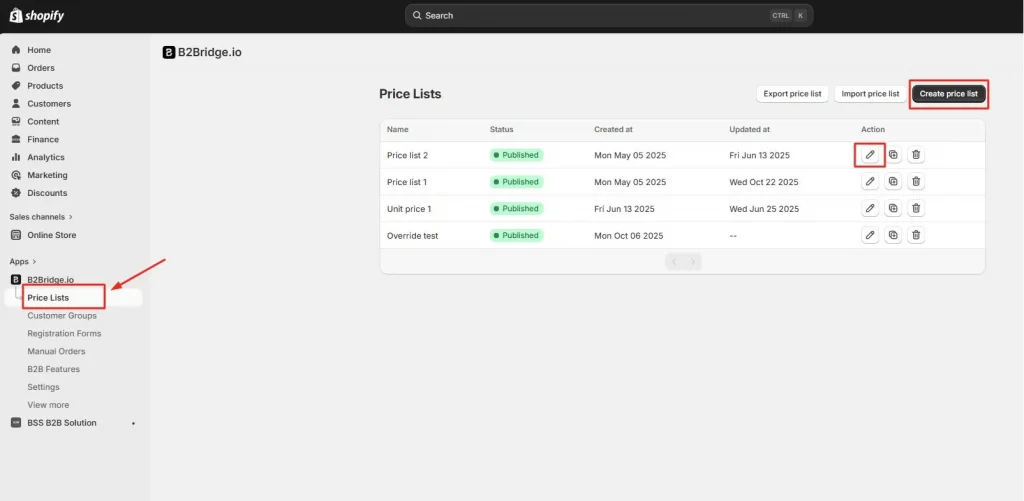
Step 1: Open your price list
In your Shopify admin with B2Bridge installed, go to B2Bridge > Price Lists and select the price list you want to edit.
Step 2: Add or Edit a product line
Find the product or variant you want to configure quantity increments for. Select if the volume discount is determined by quantity or amount.
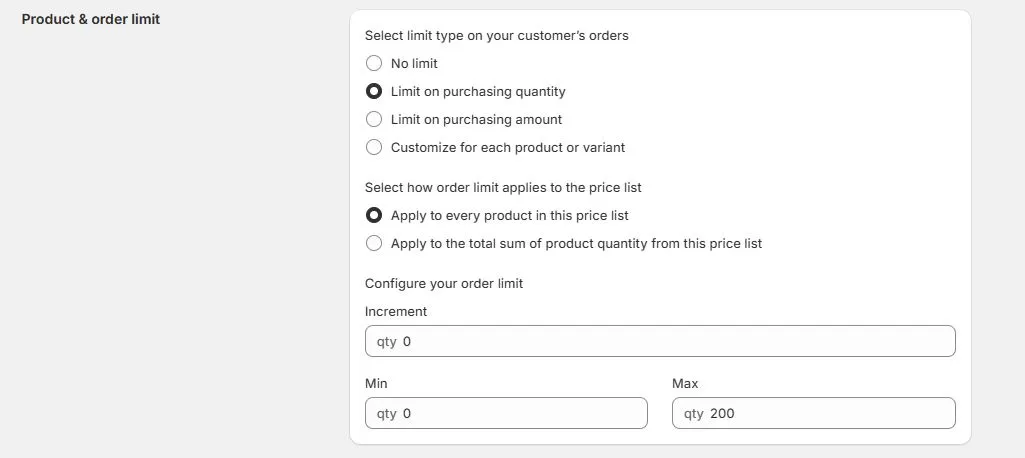
Here you can choose the limit type and how you want the limit to apply.
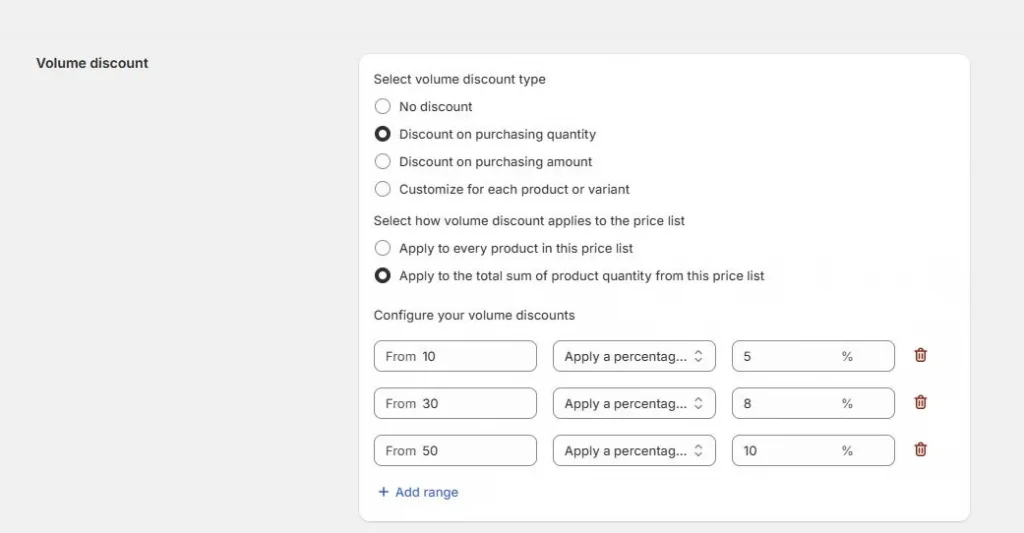
Select if the limit is determined by quantity or amount.
Choose how the discount will be applied.
- If Apply to every product in this price list is chosen, each product will be bound by the limit number you choose.
- If Apply to the total sum of product quantity from this price list is chosen, the total quantity of products in a price list will be calculated and determined if it’s eligible for checkout.
Step 3: Set quantity increments
- Increment – Enter the step size for quantity increments (e.g., 5, 10).
- Minimum – Set the minimum number of units a customer must order at this tier.
- Price per Increment – Define the price for each increment level.
- Additional Tiers – Add more rules if needed to support tiered pricing for larger volume (e.g., discounts at 50, 100+ units).
Example:
Volume pricing is set to buy 10 get 10% off across all products
The order has product A with quantity = 5, and product B with quantity = 6
The order would get 10% of since the total quantity is 11
Step 4: Save your changes
After configuring the quantity increments and pricing tiers, click Save to apply them to the price list.
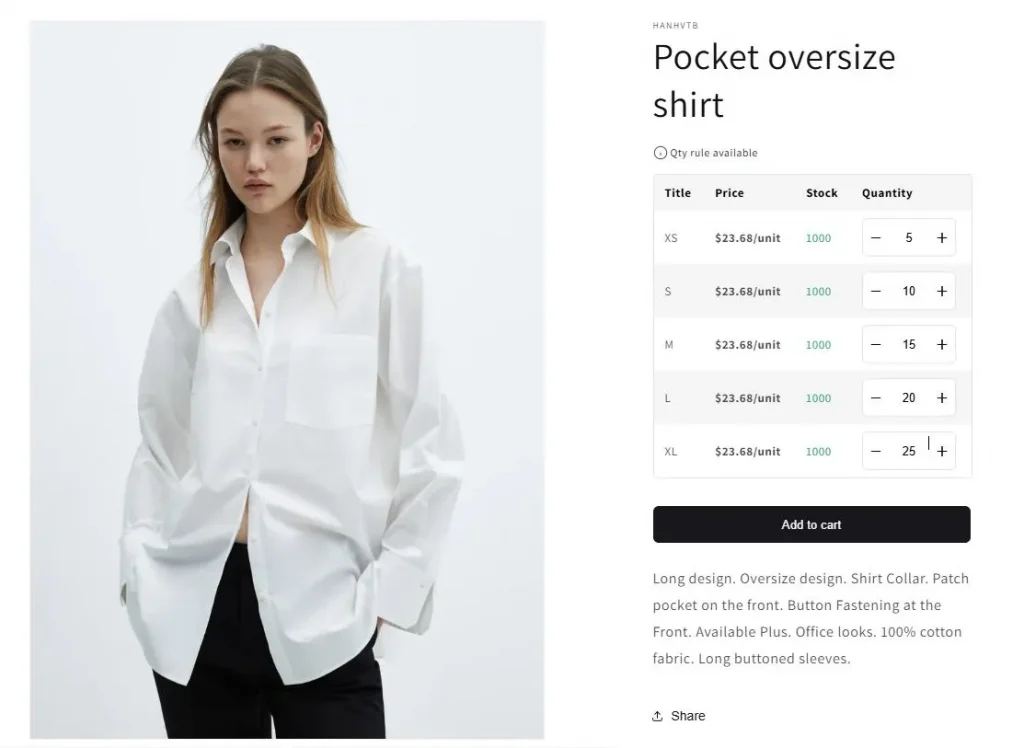
Once saved, customers will see these quantity increments and volume prices applied to Product Page, Collection Page, Quick Order Page, Cart Page. If you need a step-by-step screenshot walkthrough, just book a free call with us!
Troubleshooting Common Errors
- Stepper not showing on storefront: Clear your theme cache and check that the app is properly integrated with your current theme version.
- Rules not applying to specific variants: Verify that the rule is assigned at the variant level, not just the product level.
- Increment conflicts in cart: Check for cart-level conflict resolution settings in your app if a buyer has products from two different catalogs.
Best Practices and Advanced Configurations
Customer Segmentation Rules
Not all B2B buyers are the same, and your quantity rules shouldn’t treat them that way. Segment your rules by customer tier:
- New accounts: Higher MOQ with clear messaging and guidance.
- Established accounts: Standard catalog MOQs.
- VIP / high-volume accounts: Reduced minimums as a loyalty benefit.
Integration with Volume Pricing and Net Terms
Quantity increments become more powerful when combined with volume pricing. A rule that sets a minimum of 12 and increments of 12, paired with a 10% discount at 36 units and 15% at 72, creates a natural upsell ladder. Buyers can see their savings increase as they move up the steps, making larger orders feel rewarding rather than forced.
If your store supports net terms (Net 30, Net 60), pairing those terms with minimum quantity thresholds is a common practice: “Net 30 terms available on orders of 48+ units.” This rewards buyers for placing larger orders while managing your cash flow.
Analytics and Optimization
Once your rules are live, track these metrics monthly to refine your setup:
- Rule compliance rate: What % of orders meet quantity rules without buyer intervention?
- Average order quantity by product: Are buyers ordering at minimum, or moving up to the next increment?
- Cart abandonment on B2B products: Spikes may indicate your MOQs are too high.
Comparison Table: Quantity Increment Tools
| Tool | MOQ + Step Rules | Dynamic Sync | Portals | Starting Price |
| Shopify Plus Native | Basic | Partial | Yes | $2,000+/mo |
| BSS Commerce | Full | Yes | Yes | $20+/mo |
| B2Bridge | Advanced | Full | Yes | $99+/mo |
| SparkLayer | Full | Yes | Partial | Custom |
For most mid-market wholesale stores, a dedicated B2B app offers the best balance of capability and cost. Shopify Plus native works well for simple catalogs; B2Bridge and SparkLayer shine for complex, multi-tier operations.
FAQs on Product Quantity Increments
No. Native B2B quantity rules require Shopify Plus. Third-party apps may offer basic functionality on lower plans, but full B2B features typically require at least a Shopify Basic plan plus a paid app.
Yes. Most apps support rule exceptions by customer tag or company. You can whitelist specific accounts to bypass MOQs, which is useful for key accounts with custom agreements.
Yes – stepper controls are mobile-friendly by design. Research suggests mobile buyers convert at roughly 20% higher rates when stepper UIs are used compared to free-entry quantity fields, because steppers remove the cognitive load of knowing valid quantities.
Well-implemented tools validate at both the UI level (steppers prevent invalid entries) and the cart level (a warning appears if an invalid quantity is somehow submitted). The cart will not allow checkout with an out-of-rule quantity.
MOQs are generally considered standard commercial terms in B2B transactions and are enforceable as part of your terms of sale. They should be clearly disclosed before checkout to avoid disputes. Consult your legal counsel for jurisdiction-specific advice.
Conclusion
Product quantity increments are one of the highest-leverage configurations you can make in a B2B Ecommerce store. When set up correctly, they eliminate fulfillment errors, guide buyers toward more profitable order sizes, and reduce the support burden that comes with managing wholesale accounts manually.
Whether you’re using Shopify Plus native catalogs for a simple setup or a dedicated tool like B2Bridge for more complex wholesale operations, the investment in proper quantity rule configuration pays back quickly in operational savings and higher AOV.

Hi, I’m Hanh – a product marketing professional passionate about driving growth, simplifying complex solutions, and creating impactful strategies for Shopify that connect products with customers.